Firewall

What is Firewall
A wall that prevents the spread of fire
When data moves in and out of a server its packet information is tested against the firewall rules to see it should be allowed or not.
In simple words, a firewall is like a watchmen, a bouncer or a shield that has a set of rules given and based on that rule they decide who can enter and leave.
There are 2 type of firewalls in IT
Software - Runs on operating system
Hardware - A dedicated appliance with firewall software
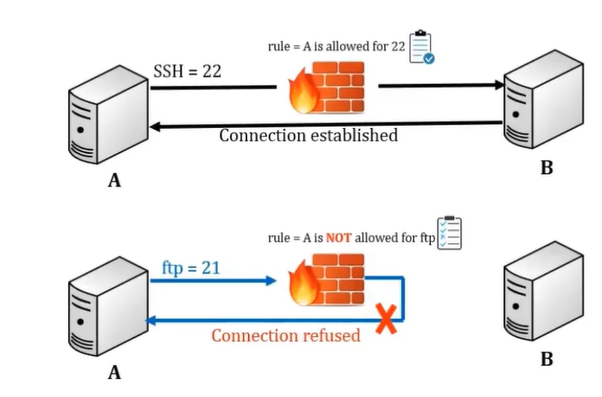
Here, Firewall is setup on server A and B, When we do SSH to server B from server A it will check the protocol(rule) from server A is allowed to come in on port 22 and that rule says, yes, this server can come in.
Another example would be I want to do FTP that runs on port 21, before it established connection with server B, It goes to the firewall and firewall rule says on server B that a server A is not allowed to come in using protocol or service FTP.
Note: Firewall is sitting in the middle i.e., Firewall is sitting on server A as well as server B.
Server A who wants to connect to server B could also have a rule whether this service is even is allowed to leave the server or not and then when it goes to server B, the server B has its own firewall, It checked service is allowed to accepted or not.
Tool to manage Firewall
There are 2 tools to manage firewall in most of the Linux distributions
iptables - For older Linux versions
firewalld - For newer versions like RHEL 7 and higher version
We can use one of them to manage the firewall
Ensure firewall is not running and disable. If iptables is in used and vice-versa.
Commands to disble the firewall
  systemctl stop firewalld    # To stop the service
  systemctl disable firewalld # To prevent from starting at boot time
  systemctl mask firewalld    # To prevent it from running by other programs
Check whether iptables-services package installed
rpm -qa | grep iptables-service  # To check whether it installed or not in RHEL
dpkg -l | grep iptables          # To check whether it installed or not in ubuntu
yum install iptables-service     # To install
systemctl start iptables         # To start the service
systemctl enable iptables        # To start when system reboots
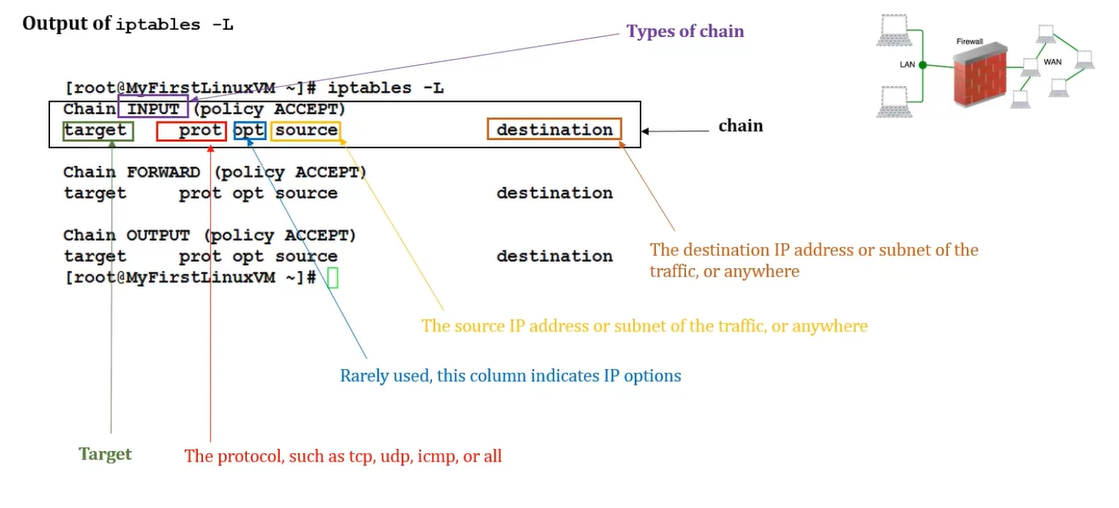
iptables -L                      # To check iptables rules
iptables -F                      # To flush iptables
Function of iptables tool
iptables tool is packet filtering
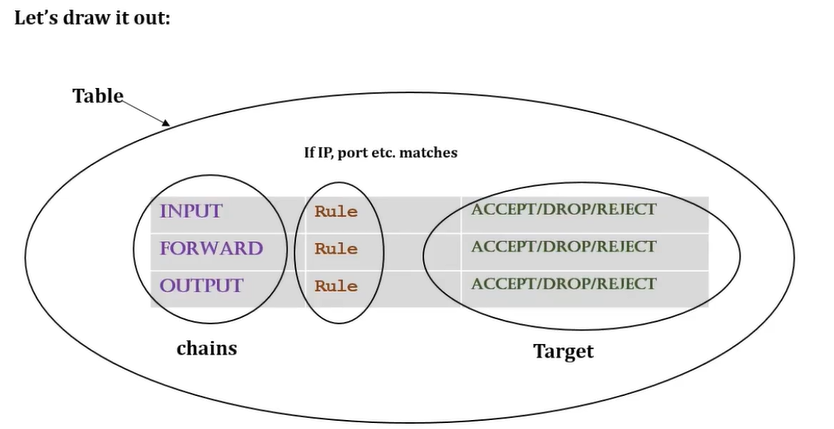
The packet filtering mechanism is organized into three different kind of struturces: tables, chains and targets
tables - tables is something that allows you to process packets in specific ways.
There are 4 different types of tables, filter, mangle, nat and raw.chains - The chains are attached to tables, These chains allow you to inspect traffic at various points.
There are 3 main chains used in iptables
INPUT - incoming traffic
FORWAD - going to router, from one device to another
OUTPUT - outgoing traffic
chains allow you to filter traffic by adding rules to them
Rule - If traffic is coming from 192.168.1.35 then go to defined target
targets - target decides the fate of a packet, such as allowing or rejecting it. There are 3 different type of targets
ACCEPT - connection accepted
REJECT - send reject response
DROP - drop connection without sending my response
Firewall
- Firewall works the same way as iptables but of course it has it own commands
firewall-cmd
It has a few pre-defined service rules that are very easy to turn on and off
- Service such as NFS, NTP, HTTPD etc.
Firewalld also has the following:
Table
Chains
Rules
Targets
To Enable the firewall service, ensure the iptables is stopped, disabled and mask
systemctl stop iptables
systemctl disable iptables
systemctl mask iptables

rpm -qa | grep firewalld
systemctl start/enable firewalld

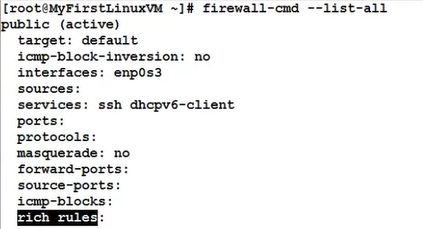
firewall-cmd --list-all      # Check the rule of firewall i.e., service which in active
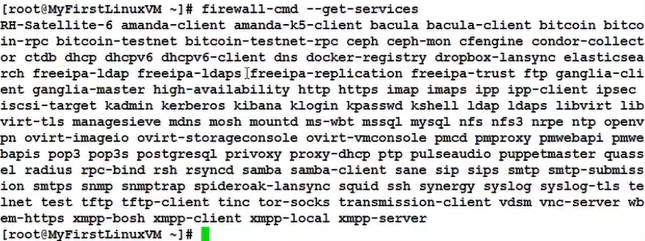
firewall-cmd --get-service   # Lists the all services of firewall
firewall-cmd --reload        # To undo or re-read config. added
firewall-cmd --get-zones                # List of all zones
firewall-cmd --get-active-zones         # List of active zonees
firewall-cmd --zone=public --list-all   # List the public zone
firewall-cmd --list-all
All service are pre-defined by firewalld. If we want to add a 3rd party sevice then
- path /usr/lib/firewalld/services/allservices.xml
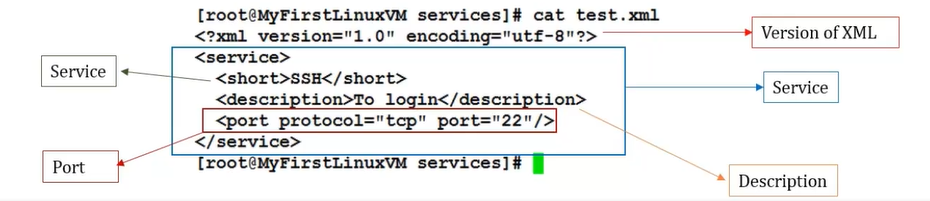
Here, simply cp any .xml file and change the service, description and port name.
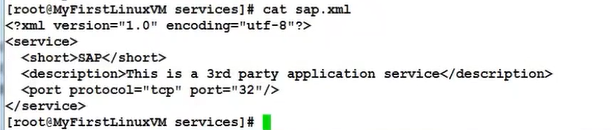
Ex. cp ssh.xml sap.xml
Now sap.xml file is created in this file change service i.e, short tag name is as sap,
description tag provide description of service,
port protocol tag define port number and protocol need to used.
- path /usr/lib/firewalld/services/allservices.xml
Commands to add/remove a service, to add 3rd party services
  firewall-cmd --add-service=http                # To add a service
  firewall-cmd --remove-service=http             # To remove a service
  firewall-cmd --reload                          # To reload config. or undo previous change
  firewall-cmd --add-service=http --permanent    # To add a service permanently
  firewall-cmd --remove-service=http --permanent # To remove a service permanently

  # To add 3rd party services
  /usr/lib/firewalld/services/                   # Path
  cp ssh.xml sap.xml                             # Copy any existing xml to new xml file and change values as mentioned above
  systemctl restart firewalld
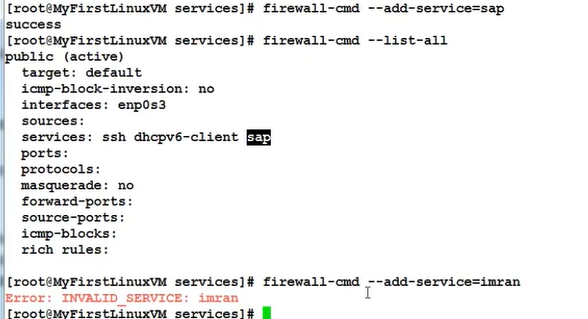
  firewall-cmd --get-service                     # To verify new service
  firewall-cmd --add-service=sap                 # To add a service
  firewall-cmd --add-port=1110/tcp               # To add a port
  firewall-cmd --remove-port=1110/tcp            # To remove a port
  # To reject incoming traffic from an IP address
  firewall-cmd --add-rich-rule='rule family="ipv4" source address="192.168.0.25" reject'
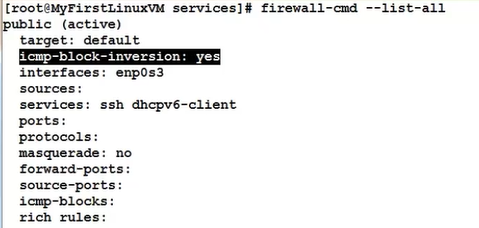
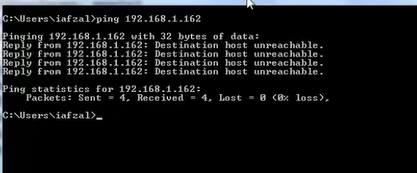
  # To block and unblock ICMP incoming traffic i.e, PING when ping connection will not establish
  firewall-cmd --add-icmp-block-inversion
  firewall-cmd --remove-icmp-block-inversion
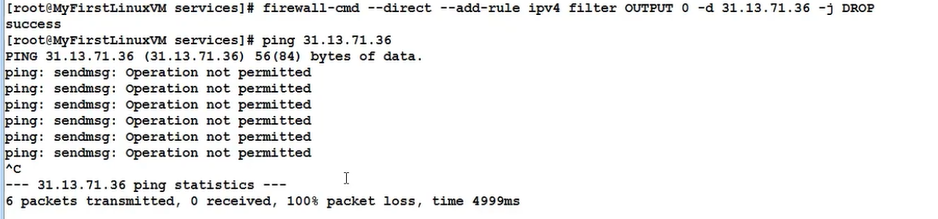
  # To block outgoing traffic to a specific website/IP address
  host -t a www.facebook.com                   # It will find the IP
  firewall-cmd --direct --add-rule ipv4 filter OUTPUT 0 -d 31.13.71.26 -j DROP
  # To unblock outgoing traffic of a specific website/IP address
  firewall-cmd --reload
  systemctl restart firewalld
  ping 31.13.71.26
Hope Firewalld concept as clear.